• You can now help support WorldwideDX when you shop on Amazon at no additional cost to you! Simply follow this Shop on Amazon link first and a portion of any purchase is sent to WorldwideDX to help with site costs.

Luiton LT-310SDR

I bought two in the end, first one was the cable that was on Simonthewizard's website here: https://amzn.eu/d/00mA4CGK

and then I ended up buying this one from ebay: https://ebay.io/m/RnMHdO

which was a bit pricey. The amazon cable shows up as working fine in device manager as a USB serial. The ebay one shows up as Silicon Labs CP210x USB to UART Bridge and again working fine under device manager.

Tried multiple combinations with RJ12 plugs to get them working but no luck so far.
 
I bought two in the end, first one was the cable that was on Simonthewizard's website here: https://amzn.eu/d/00mA4CGK

and then I ended up buying this one from ebay: https://ebay.io/m/RnMHdO

which was a bit pricey. The amazon cable shows up as working fine in device manager as a USB serial. The ebay one shows up as Silicon Labs CP210x USB to UART Bridge and again working fine under device manager.

Tried multiple combinations with RJ12 plugs to get them working but no luck so far.
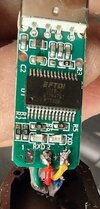
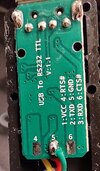
The one you say you got from Amazon is exactly the one I am using. I ended up buying a 6P6C cable off Amazon and used about 2' off one end to solder to the adapter. I didn't have a 6 pin crimper and the cable would have been cheaper than buying a crimper.

Anyway, if you look at the attached pic, pin 2 (2nd from the left) is RXD, pin 3 (3rd from the left) is ground and pin 4 (4th from the left) is TXD. I originally wired the RXD line to the TXD pin on the mic etc, but it didn't work. When reversed the RXD and TXD lines it fired right up. Also, not sure what the baud rate setting needs to be for the COMM Port, but I went into the device manager and set it at 115200.

Max
 

Attachments

  • img_0762.webp
    img_0762.webp
    19.2 KB · Views: 11
Last edited:
  • Like
Reactions: Shadetree Mechanic
Thank you for the help, It's more than appreciated. I've had to order some more RJ12 connectors. I'll try one more time when the connectors arrive.
 
Just an update. Tried reversing TXD and RXD (white - pin 2, ground - pin 3, and green - pin 4) and it's still not working. No data, uninstalled driver, reinstalled it... to no avail. I think I'll give up.
 
Hi Mike, if ok can we help eliminate & confirm some things that may get you there. There's going to be a few assumptions ahead but if you could add pictures of your cable, your device manager\ports\Port settings & Driver details it might help you get his finished.

Assuming cables are crimped as already established.

Assuming you are on a Microsoft OS, which one Win 11 pro/home, Win 10 pro/home? or something else?

Assuming Microsoft going forward.

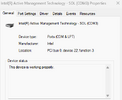
Which device is showing when you open Device Manager\ports\? PIC please.
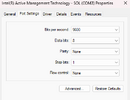
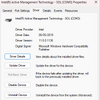
Whichever one is showing, what does General Tab and Port Settings and driver say? Pic's please. ***Yours will not look like the example below***
Port General.pngPort Port Settings.pngPort Driver.png

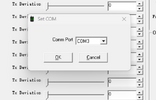
Also a screen shot from the Z610 Tune software please Setting/Set Com

Z610 Com.png

So we try to narrow this down.
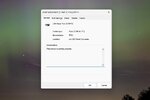
The Com Port device is recognised in Device Manager. Says "This device is working properly"

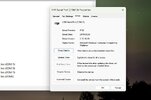
The Com Port device settings are configured correctly, the device is working, the port settings are correct and the driver is correct. @VE3TMT could potentially help by displaying his port settings.(Assuming same/similar OS though)

The correct driver is loaded. again @VE3TMT might be able to screenshot this from their system (Assuming same/similar OS though)

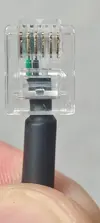
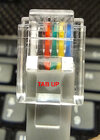
The cable is wired correctly. Pic will help.

After that (broadly) if still no joy you're possibly looking at some programming fault on the Radio Side, could be anything but if its not the cable, its not your OS, its not the Com device, and its not a misconfigured application then your looking at the radio itself potentially.
 
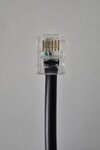
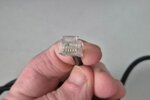
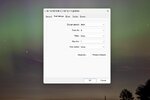
Hi there, Yes I am using Windows 11 Home edition. I have added some files, the plug I crimped and the driver details and comm port. I haven't installed the CP210x driver in case that was the issue. But please see attached images. I appreciate the help very much. Thank you.
 

Attachments

  • rj12_1.jpg
    rj12_1.jpg
    304.6 KB · Views: 2
  • driver_details_2.jpg
    driver_details_2.jpg
    59.2 KB · Views: 3
  • driver_details.jpg
    driver_details.jpg
    55.5 KB · Views: 3
  • driver.jpg
    driver.jpg
    66.2 KB · Views: 2
  • rj12_2.jpg
    rj12_2.jpg
    190.6 KB · Views: 2
I had a glimmer of hope! I checked wiring on the microphone, so I tried pin 3: white, pin 4: ground and pin 6: green and the progress bar momentarily began. TX I think is right but the other's aren't.
 
Great. Hoping @VE3TMT can jump in with the detail on baud rate etc as he's using the same hardware as you. I would hazard a guess that it should be higher the 9600 though.
Also COM 10, is that the first available port your hardware has to use? do you have 9 other devices using com ports below that? Some applications even recent ones will have issue with such high com port numbers, I'm not saying it does just that high com port numbers are a known issue with some software even at Win11 (its been like that for years (win7).

use this if you have ghost ports and want to get back down to single figures.

To clear out old, disconnected hardware that is hogging lower COM port numbers, you need to force Windows to show hidden devices in Device Manager and then uninstall them.
Here is the step-by-step process to free up and reallocate those lower numbers:

Step 1: Reveal and Remove Hidden COM Ports
  1. Right-click the Start menu and select Device Manager.
  2. Click on the View menu at the top and select Show hidden devices.
  3. Scroll down and expand the Ports (COM & LPT) section.
  4. Any old, disconnected devices will appear faded or translucent.
  5. Right-click each unused/faded device and select Uninstall device.
  6. If prompted, check the box that says “Attempt to remove the driver for this device” (only do this for old hardware you no longer plan to use) and click Uninstall.

Step 2: Reallocate to a Lower Number
Once you have cleared out the ghosts, you can move your current device down:
  1. While still in Device Manager, expand Ports (COM & LPT).
  2. Right-click the active device you want to change (the one on COM10+) and select Properties.
  3. Go to the Port Settings tab and click the Advanced... button.
  4. Locate the COM Port Number drop-down menu at the bottom.
  5. Select an available lower number (e.g., COM2 through COM9).
    • Note: If a port still says "in use" even after deleting the hidden devices, it is usually safe to override it as long as that specific device isn't currently plugged into your PC.
  6. Click OK on both windows to save and apply the changes.

if that doesn't work there are ways via registry but you'd need to research and feel confident about that yourself.

 

dxChat
Help Users
  • No one is chatting at the moment.